
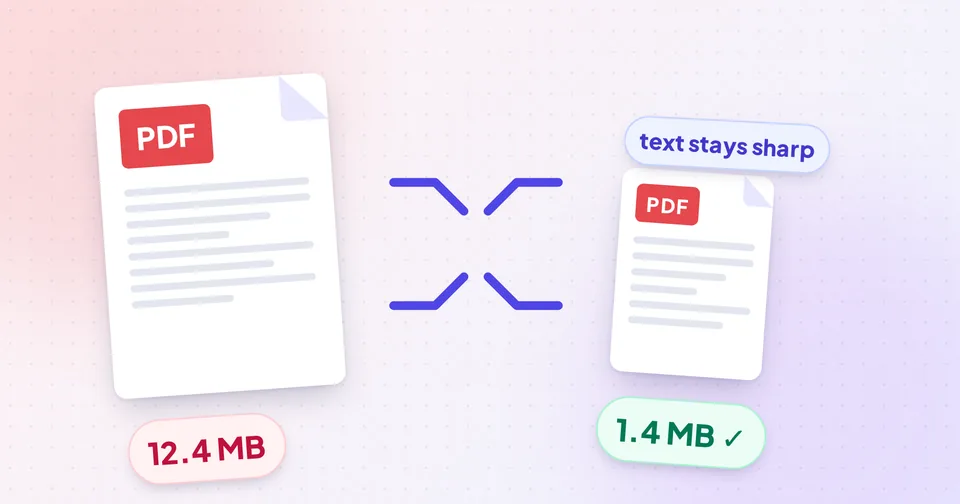
What makes a PDF large?
A PDF is a container. Inside it you'll find some mix of the following, and each contributes very differently to the file size:
| Content | Typical size impact | Can it be compressed safely? |
|---|---|---|
| Text | Tiny: a 100-page novel can be under 1 MB | Already efficient |
| Embedded fonts | Small to moderate | Rarely worth touching |
| Vector graphics (charts, diagrams) | Small | Already efficient |
| Photos and scanned pages | Large: often 90%+ of the file | Yes, this is where savings come from |
| Attachments and forms | Varies | Not by compression |
A scanned document is the extreme case: every page is one big photo, so a 30-page scan saved at high resolution can run to 50–100 MB. A report exported from Word with a few charts, on the other hand, is mostly text and vectors and may only be a few hundred KB already.
Resolution: the setting that matters most
Images inside a PDF have a resolution measured in DPI (dots per inch): how many pixels are packed into each inch of the printed page. Scanners and phone cameras often capture at 300–600 DPI or more, far more than a screen needs.
- 72–100 DPI: fine for quick on-screen previews, but small text in scans can get fuzzy.
- 150 DPI: a sweet spot for reading on screens and sharing by email. Text in scans stays legible.
- 200–300 DPI: for documents that will be printed or need fine detail.
Reducing a 300 DPI image to 150 DPI removes three quarters of its pixels. Combined with sensible JPG compression, that's where the dramatic size reductions come from, without touching the actual text.
Method 1: Compress images and keep the text (recommended)
For most PDFs, the best approach is to recompress only the images and leave everything else alone. The PDF Compressor does this in its Keep text mode:
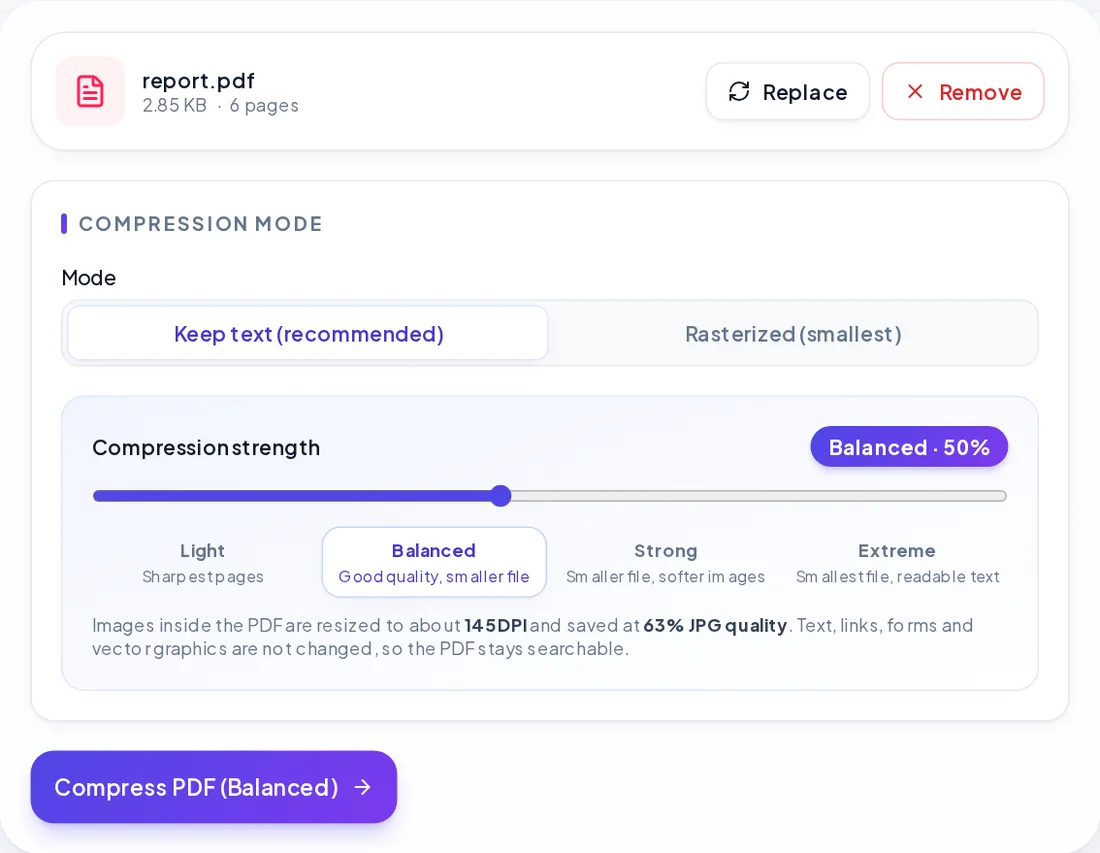
- Open the PDF Compressor and add your PDF. Files up to 1 GB and 2,000 pages are accepted; password-protected files ask for the password.
- Leave the mode on Keep text.
- Choose a strength from Light to Extreme. The tool shows the resolution and JPG quality each level uses for the images.
- Compress. The result is re-opened and checked before you can download it, and you see the size before and after.
Text, links, form fields and vector graphics are untouched, so the document stays searchable and selectable, and text looks as sharp as before at any zoom.
Tip: Start with a medium strength. If the result is still too large, try a stronger setting. The compressor offers one-tap retries, so you don't need to start again from scratch.
Method 2: Rasterize for scans and maximum savings
Rasterized mode rebuilds every page as an image at the resolution you choose. It usually gives the smallest file, especially for scanned documents, and shows a live estimate of the final size as you adjust the strength.
The trade-off is that everything on the page becomes part of a picture:
- Text can no longer be selected, copied or searched.
- Links and fillable form fields stop working.
- Vector graphics lose their infinite sharpness when zoomed.
For a scan, none of that matters, because the pages were already pictures. For a contract you need to fill in, or a manual people will search, use Keep text instead.
Watch out: Compressing a PDF that carries a digital signature changes the file, so the signature will no longer validate. Compress before signing, not after.
When a PDF won't get smaller
Sometimes compression barely changes anything. The PDF Compressor tells you which of these is the reason, rather than handing you an identical file:
- No images: the file is mostly text and vectors, which are already compact.
- Images already compressed: someone (or the scanner) already optimised them.
- Fonts or attachments: the size comes from embedded fonts or files attached to the PDF.
- Unusual image formats: some images (for example CMYK or JPEG 2000) can't be safely re-encoded in the browser; Rasterized mode can still help with those.
In those cases, reduce what's in the file instead:
- Remove pages the recipient doesn't need with Extract PDF Pages: select the pages to keep and save them as a new PDF.
- Split a long document into parts with Split PDF, by page ranges, every page or every N pages, so each part fits under the limit.
When the portal wants images instead of a PDF
Some application forms ask for each page as a JPG, often with a size limit per image. Convert the pages with PDF to JPG: choose the pages you need and a resolution (150 DPI is plenty for most forms), then download single images or a ZIP.
If each JPG must be under a certain KB, run them through a target-size tool afterwards. How to reduce photo size for online forms explains the steps.
Tips for smaller PDFs from the start
- Scan documents at 150–200 DPI rather than 600 DPI unless you need print quality.
- Use grayscale or black-and-white scan settings for plain text documents.
- When exporting from Word or other apps, choose a "smaller file" or "minimum size" option if one is offered.
- Crop or resize photos before inserting them into a document.
- Combine several files only when necessary; merging adds the sizes together.
Turning phone photos into a PDF? How to scan documents to PDF with your phone covers getting good, compact scans.
Privacy note: the PDF Compressor runs on your own device. Contracts, bank statements and ID documents are never uploaded. Very large files need free memory of roughly 2–3 times the file size, so a computer works better than a phone for PDFs over a couple of hundred MB.