
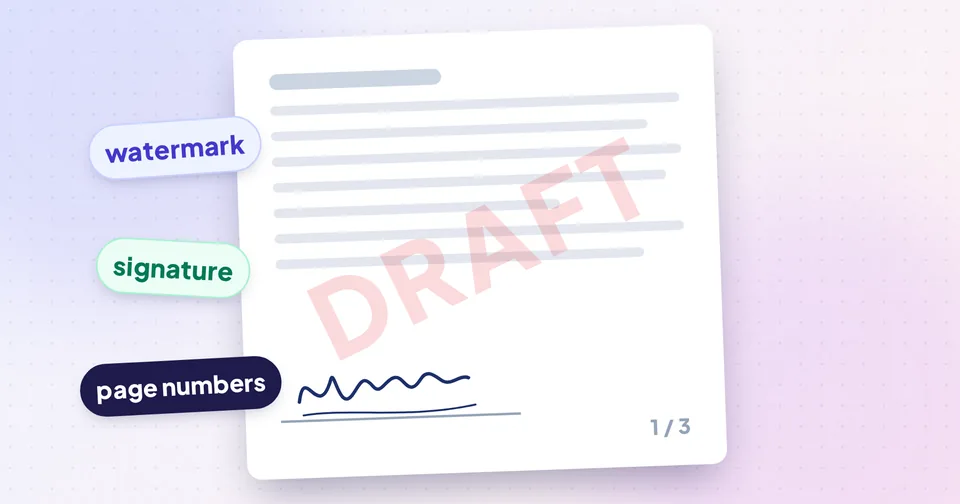
Do the steps in the right order
Each of these changes is added on top of the pages. If you sign first and then discover a page is missing, you have to redo everything. This order avoids that:
- Organise: put pages in order and remove blanks with Organize PDF, and turn sideways scans with Rotate PDF. For combining files first, see How to merge PDFs and put the pages in order.
- Number: add page numbers once the page count is final.
- Watermark: mark the document's status, such as DRAFT, COPY or CONFIDENTIAL.
- Sign: add signatures, initials and dates last, on the final version.
Tip: Keep an unsigned copy of the finished document. If the other side asks for a change, you can edit that copy and sign again instead of working on a signed file.
Adding page numbers
Add Page Numbers to PDF places real, searchable text numbers on each page. The choices that matter most:
- Position: six places, top or bottom, left, centre or right.
- Format: 1, Page 1, Page 1 of 10, 1 / 10, or your own using {n} for the page and {total} for the page count, for example "Seite {n} von {total}".
- Skip the cover: set the first page to number to 2 and choose what number it starts from, so the title page stays clean.
- Mirror for double-sided printing: numbers alternate between the outer corners of left and right pages.
- Number only a range, for example the main body but not the appendices.
Numbers stay upright and in the correct corner on rotated, landscape and mixed-size pages, and the live preview is drawn by the same engine as the download. For text in scripts such as Hindi, Arabic or Chinese, upload a TTF or OTF font that contains those characters.
Adding a watermark
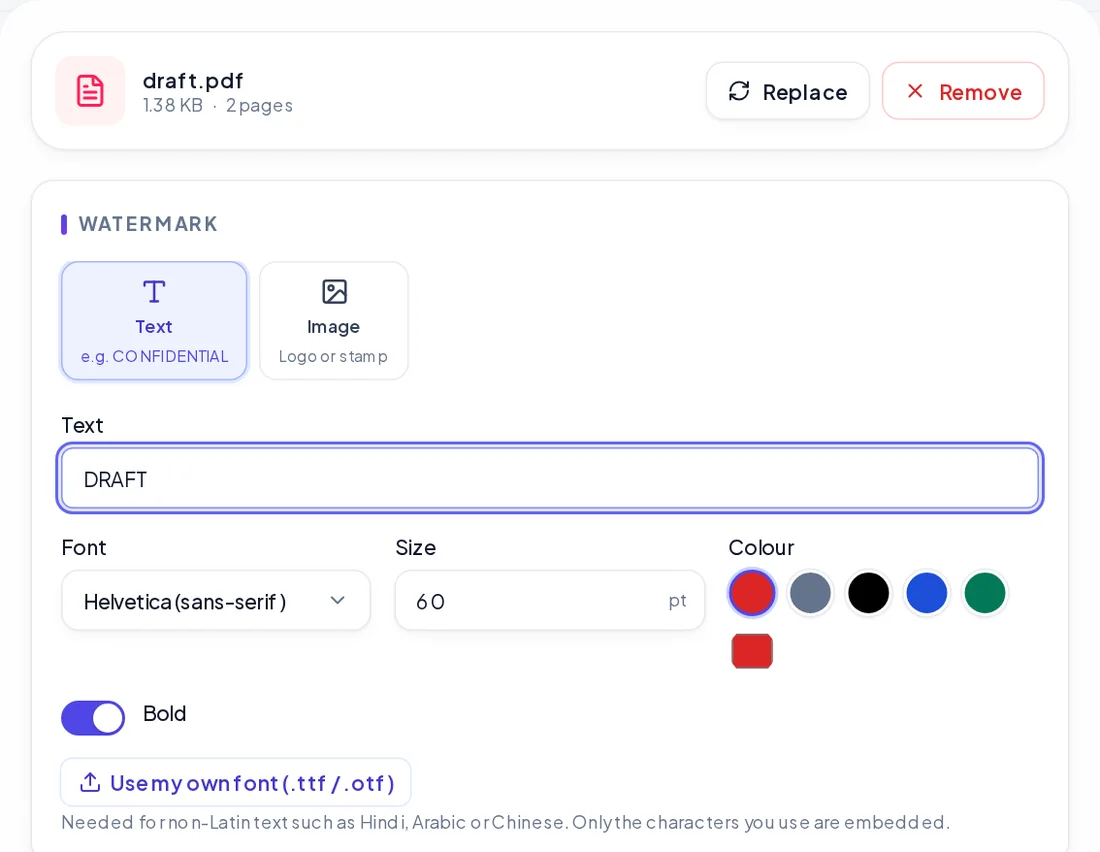
A watermark tells readers what the document is, for example a draft, a sample or a confidential copy, and discourages casual reuse. Watermark PDF supports text or an image such as your logo, with control over opacity, angle, size and colour, placed once in the centre or tiled across each page.
Over or behind the content?
| Layer | Looks like | Best for |
|---|---|---|
| Over the content | A translucent mark on top of everything | Scanned documents and anything where the mark must always show |
| Behind the content | A faint mark under the text and images | Typed documents where readability matters most |
Behind the content is invisible on scanned pages, because a scan is one big image that covers the whole page. If your PDF mixes scans and typed pages, choose Over.
Text watermarks are real vector text, so they stay sharp at any zoom, and image watermarks keep their full resolution and PNG transparency. Opacity around 15–25% usually keeps the page readable while the mark stays obvious.
Watch out: A watermark is a deterrent, not protection. Anyone determined can edit a PDF. For a stronger mark, flatten the pages to images afterwards, for example with the rasterized mode of the PDF Compressor, keeping in mind that text is then no longer selectable.
Signing the PDF
Sign PDF lets you create your signature in three ways:
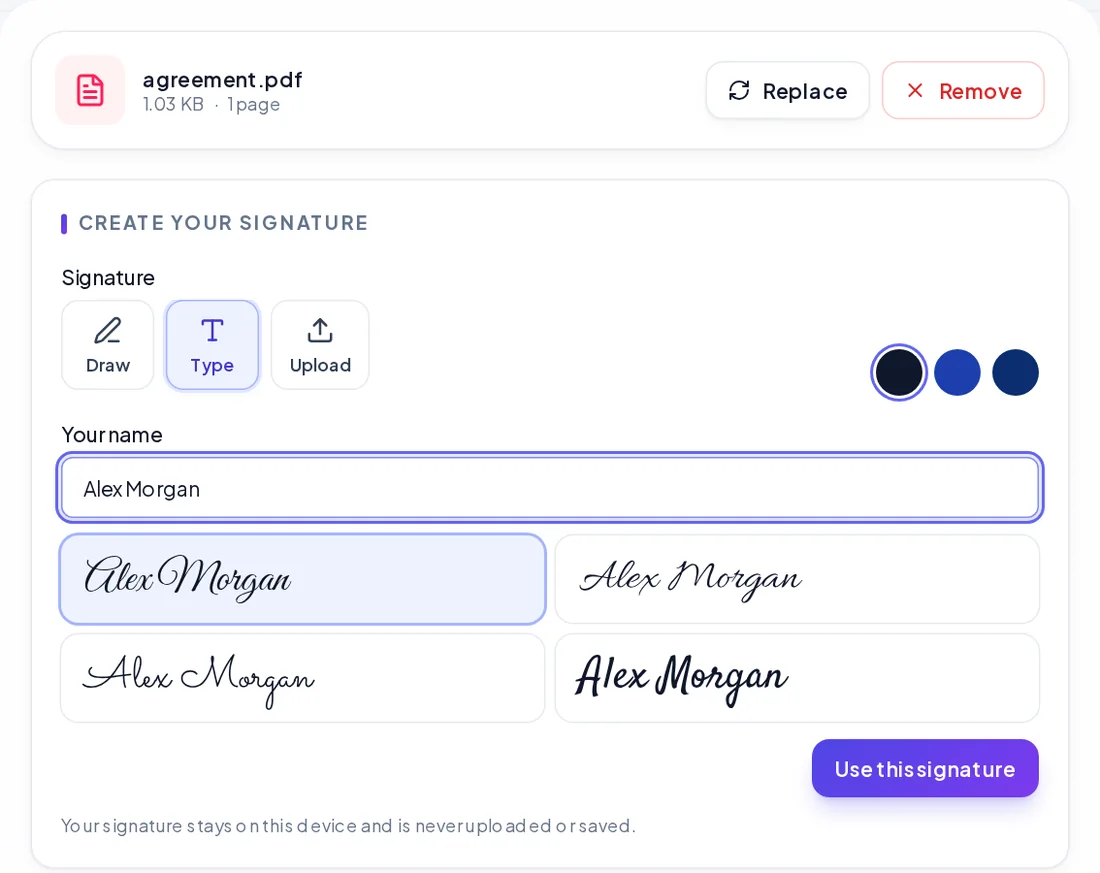
- Draw it with a mouse, finger or stylus. Strokes are smoothed so they look natural, and they're saved as vector shapes that stay sharp when printed.
- Type it and pick one of four handwriting fonts. The result is real text in an embedded font.
- Upload a photo of your signature on paper. The paper background is removed automatically and the image keeps its full resolution.
Then drag the signature onto the page and resize it to fit the line. You can also add initials, the date and free text, which is handy for filling in a name or place. If the document asks for initials on every page, place them once, select them and choose "Put on every page".
Your signature and document stay on your device. They aren't uploaded or stored, and when you close the page they're gone.
Tip: For a photo signature, sign in dark ink on plain white paper and photograph it in daylight. A clean source gives a crisp, natural-looking result.
Electronic signature vs digital signature
These terms are often mixed up, and the difference matters for some documents.
- An electronic signature is a mark showing you agreed to something: a drawn or typed name, or an image of your handwritten signature placed on the document. That's what Sign PDF creates. It's comparable to printing, signing and scanning a page.
- A digital signature is a cryptographic seal made with a certificate, often issued by a certification authority. It proves who signed and detects any change made afterwards. Software shows it as a signature panel, and editing the file invalidates it.
Many everyday documents accept an electronic signature: offer letters, consent forms, rental paperwork, quotes, internal approvals. Some don't: certain government filings, tax returns and court documents may require a certificate-based digital signature or a specific e-sign service. When in doubt, ask whoever requested your signature what they accept; the rules depend on the country and the type of document.
Watch out: Adding anything to a PDF that already carries a certificate-based digital signature will break that signature. Watermark, number and sign documents before they're digitally sealed, not after.
Before you send it
- Open the final PDF and check every signature line, initial and date field.
- Make sure the watermark doesn't hide anything important, such as amounts or names.
- Confirm the page numbers run correctly after any last changes.
- If it's too large to email, compress it last. Keep text mode leaves text and vector content untouched (page numbers, typed and drawn signatures); only images, including an uploaded signature photo, are recompressed.