
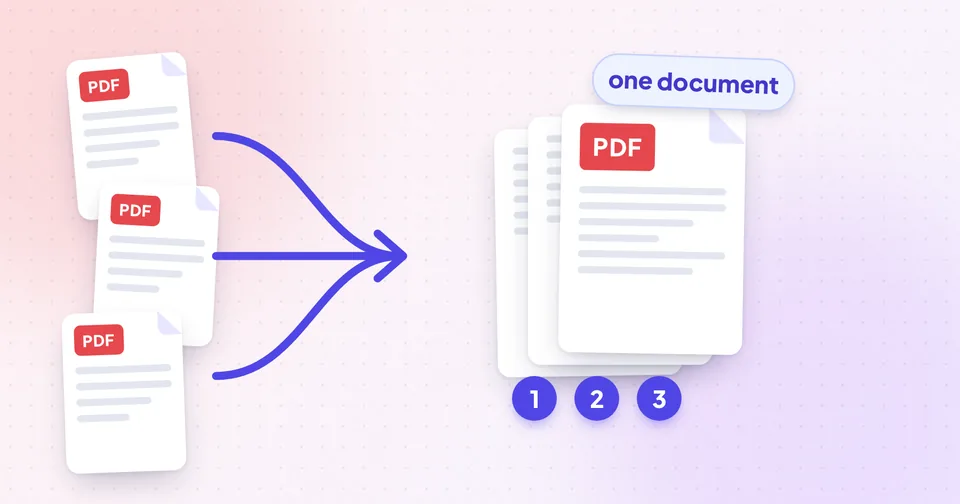
Plan the final document before you start
A minute of planning saves a lot of dragging. Write down, even roughly, the order the reader expects. For a job or university application that might be: cover letter, CV, certificates from newest to oldest, then ID documents. For expenses: the claim form first, then receipts in date order.
Then look at what you have and note three kinds of problem:
- Pages in the wrong order, or files that should be interleaved.
- Sideways or upside-down pages, which is common with scans and phone photos.
- Pages you don't need: blank backs of single-sided scans, duplicate pages, instructions you were told to remove.
Tip: Rename the files with a number in front (01-cover.pdf, 02-cv.pdf…). The merge list then starts out close to the right order.
Step 1: Merge the files into one PDF
Open Merge PDF and add your files. You can add up to 20 PDFs at a time. Before merging, put the files in order with the arrow buttons and remove any you added by mistake.
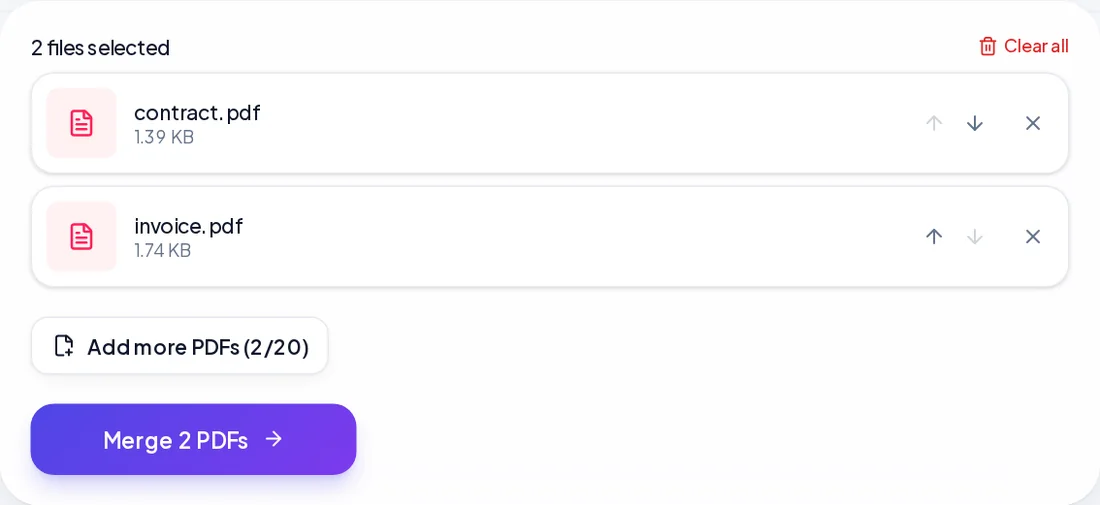
Merging keeps every page exactly as it was: page sizes and orientation are preserved, and the text stays selectable. When it's done, the tool checks that the merged file contains every page from every input.
If one of the PDFs is password-protected, you'll be asked for its password when you add it. Restrictions on printing or editing are removed in the merged copy, so the result is a normal PDF.
Watch out: Merging won't fix pages that are in the wrong order inside one file, or pages that are sideways. That's what the next two steps are for.
Step 2: Reorder and remove pages
Open the merged file in Organize PDF. You'll see a thumbnail of every page, so you can check the content instead of guessing from page numbers. From here you can:
- Drag a page to its new position. On a touch screen, use the arrow buttons instead.
- Delete blank pages and pages you don't need.
- Duplicate a page, for example a signed declaration that has to appear twice.
- Select several pages and delete them together.
- Reverse the whole order in one click, which helps when a scanner fed the stack back to front.
Open the large preview on any page you're unsure about. It's much easier to spot the back of a page or a duplicate at full size.
Tip: Organize PDF changes the order and the number of pages, not their orientation. Turn sideways pages with Rotate PDF, as described in the next section.
Pages are copied into the new file, not re-drawn, so text remains searchable and scanned images keep their original quality.
Step 3: Fix sideways pages
Use Rotate PDF for any page that's sideways or upside down. Choose 90°, 180° or 270° clockwise, and apply it to all pages or only the pages you list.
Rotation is stored in the page settings, so nothing is re-encoded and there's no loss of quality. That's also why it's very fast, even on long documents.
| Situation | Best tool |
|---|---|
| One or two pages sideways, mixed in with normal pages | Rotate PDF, with a page list such as 4 |
| Every page upside down | Rotate PDF, 180°, all pages |
| Pages 3, 7 and 12 to 15 all turned the same way | Rotate PDF, with a page list |
When you need fewer pages, not more
Sometimes the job is the opposite of merging: someone asked for only part of a document, or a portal only accepts small files.
Pull out specific pages
PDF Page Extractor shows thumbnails and lets you tap the pages you want, select odd or even pages, or type ranges like 2-5, 8. Save the selection as one new PDF, or as separate single-page PDFs in a ZIP. Your original file is never changed.
Break a document into parts
Split PDF cuts a document by ranges, where each range becomes its own file, into single pages, or into chunks of every N pages. Use ranges like 1-3,5,8-9; pages start at 1. All parts download together as a ZIP.
Tip: Splitting into chunks is handy for upload forms with a per-file size limit. Splitting a 40-page scan into four files of 10 pages each often gets every part under the limit without lowering quality.
Keep the file size sensible
Merging adds sizes together: five 3 MB scans make a 15 MB PDF. If the merged file is over a limit, compress it after you've finished organising, not before. That way you only compress once, and there's no point compressing pages you're going to delete anyway.
The PDF Compressor can shrink the images inside the PDF while leaving text and links alone. How to compress a PDF without losing quality explains which settings to choose.
A quick checklist before you send it
- Scroll through the final PDF from start to finish. It only takes a minute and catches most mistakes.
- Check that no page is sideways and nothing is duplicated by accident.
- Make sure the first page is the one the reader should see first. Many viewers show it as the thumbnail.
- Check the file size against any upload limit.
- Give the file a clear name, like firstname-lastname-application.pdf, rather than merged.pdf.
If your pages started as phone photos of paper documents, How to scan documents to PDF with your phone covers getting clean, straight pages before you merge them.