
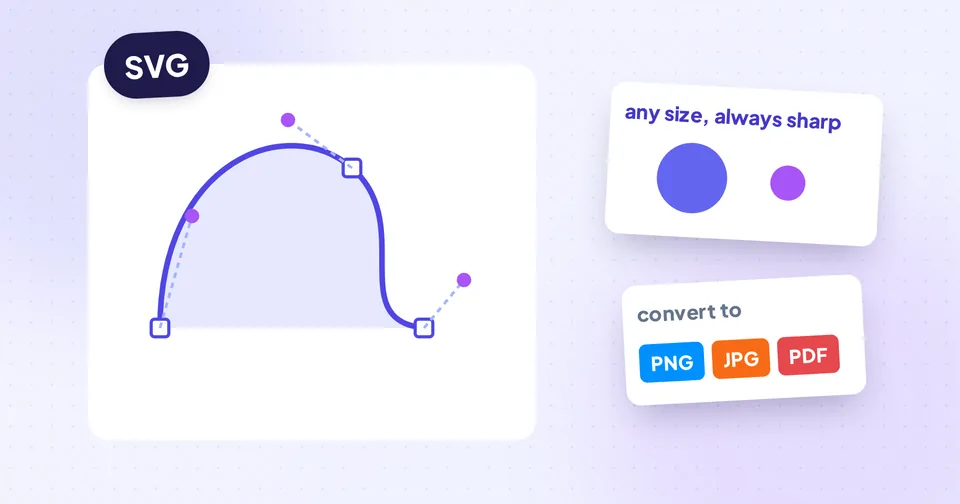
What an SVG actually is
Most images, such as JPG, PNG and WebP, are raster images: a grid of coloured pixels. Enlarge one and you eventually see the squares. SVG (Scalable Vector Graphics) works differently. It's a text file that describes shapes: "a circle here with this radius, a curve from this point to that point, filled with this colour". The viewer draws those shapes fresh at whatever size is needed.
That has three practical consequences:
- Perfect sharpness at any size. The same SVG logo looks crisp in a 16-pixel browser tab and on a large banner.
- Small files for simple artwork. A logo made of a few shapes is often only a few kilobytes.
- Editable. Designers can change colours, text and shapes in tools like Illustrator, Inkscape or Figma.
The trade-off is that SVG is a poor fit for photographs. A photo has millions of subtly different pixels, and describing them as shapes produces either a huge file or a stylised, poster-like look.
When to keep SVG and when to convert
| Where it's going | Best format | Why |
|---|---|---|
| Your own website (logo, icons) | SVG | Sharp on every screen, usually the smallest file |
| Social media, chat apps, marketplaces | PNG | SVG uploads are usually rejected; PNG keeps transparency |
| Online forms, Word or PowerPoint | PNG or JPG | Widely accepted; use JPG if a white background is fine |
| Web pages that don't accept SVG uploads | WebP | Small and keeps transparency |
| Printing, or sending to a printer | Stays vector, so it's sharp at any print size |
A simple rule: keep the SVG as your master file, and export copies in other formats for wherever they're needed. Never throw away the SVG, because you can't get the vector back from a PNG later without tracing it again.
Converting SVG to PNG, JPG, WebP or PDF
The SVG Converter handles all four formats on one page, and there are dedicated pages for the most common job, SVG to PNG, as well as SVG to PDF.
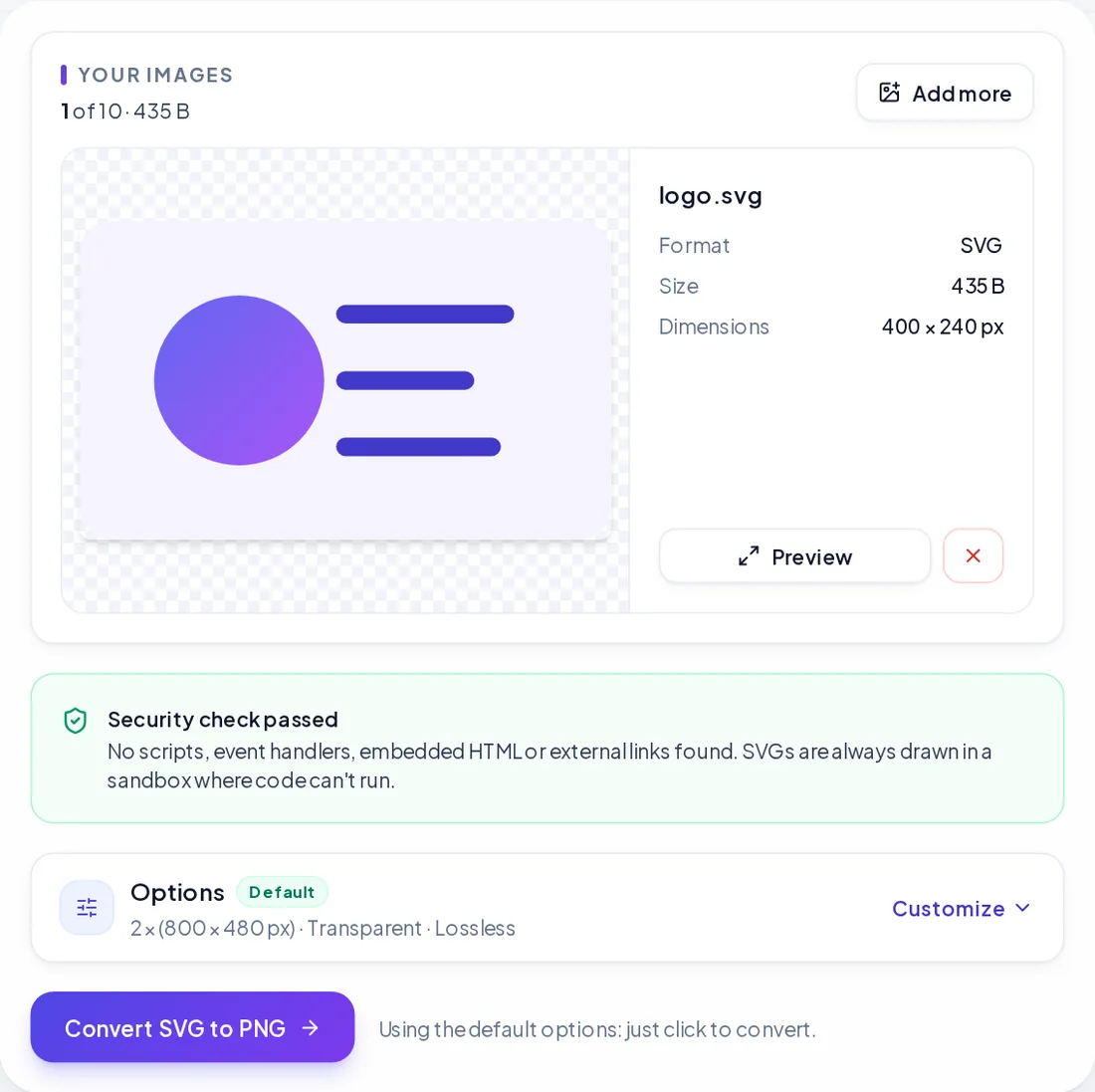
Pick the size, not just the format
Because an SVG has no fixed resolution, you decide how many pixels the export has. The default is 2×, which suits most screens; choose 3× or 4× for high-resolution displays or large prints, or type an exact width and height. Exports can go up to 12,000 px per side.
Backgrounds
PNG and WebP keep transparent areas transparent, unless you pick a background colour. JPG can't store transparency, so transparent areas are filled with white or a colour you choose.
PDF: vector or image
SVG to PDF keeps shapes as vectors and text as selectable text by default, so the PDF is sharp at any zoom and usually small. The page can match the artwork or use A4 or Letter with margins, and several SVGs can be combined into one PDF. If an SVG uses unusual effects, such as filters, that look different in vector mode, the Image option places a pixel-exact, roughly 300 DPI copy on the page instead.
Tip: If text in your SVG looks different after converting, the SVG probably links to a web font. Fonts aren't downloaded from the internet during conversion; the tool tells you which fonts are missing and lets you add the font file from your computer.
Turning an image into an SVG (tracing)
Going from pixels to vectors is called tracing: software finds areas of similar colour and draws shapes around them. PNG to SVG and JPG to SVG produce real, editable shapes, not a PNG wrapped inside an SVG file, which is what some converters quietly do.
You can control the result:
- Colour mode with 2 to 64 colours. Fewer colours give simpler, cleaner shapes.
- Black and white mode with an adjustable threshold, ideal for signatures, sketches and scanned line art.
- Low, medium or high detail, plus smoothing that removes JPG noise before tracing.
- Remove white background: the white area touching the edges becomes transparent, while white details inside the artwork stay.
What traces well
Logos, icons, flat illustrations, text, signatures and drawings with clear edges and few colours. Start from the largest, sharpest version you have; a tiny, blurry logo gives wobbly outlines.
Watch out: Photos trace into stylised art with large files. If you need a photo on a website, use JPG or WebP instead; see PNG vs JPG vs WebP.
Making SVGs smaller
SVGs exported from design tools often carry a surprising amount of baggage: editor metadata, comments, hidden layers and numbers with ten decimal places. The SVG Optimizer, built on the widely used SVGO library, strips that out and simplifies paths while keeping the drawing visually the same.
The recommended setting keeps 3 decimal places, which is visually identical for almost every file. Turn on Keep IDs only if CSS or JavaScript on your site targets elements inside the SVG. The Responsive option removes fixed width and height so the SVG scales to its container. Always compare the before and after previews before downloading.
SVG safety: why cleaning matters
Because an SVG is code, it can contain more than shapes: scripts, event handlers, embedded web pages and links that fetch resources from the internet. That's harmless when an SVG is shown as an ordinary image, but risky when it's opened directly or edited by careless tools.
EasyFile24's SVG tools check every file before conversion or optimisation. Scripts, event handlers, embedded HTML and external links are removed, the file is drawn in the browser's sandboxed image mode where nothing can run, and you're shown exactly what was removed. As with the other tools, the processing happens in your browser and nothing is uploaded.
Tip: If you receive an SVG from an unknown source, don't open it directly in your browser's address bar. Convert it to PNG first, or run it through the optimizer to get a cleaned copy.